01 / Prepare
Start with the artwork you have.
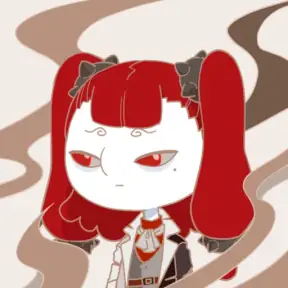
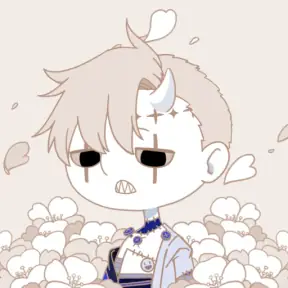
Use transparent PNGs and choose the canvas size for the Set. That canvas is the reference frame for every Layer and Asset.
- Format
Transparent PNGs
Start with PNG artwork that keeps its transparent areas.
- Canvas
One shared frame
Choose the Set canvas. Every Layer and Asset composites onto it.
- Folders
Group files your way
Folders can set default Trait and Layer values for uploaded files. Permuya applies them once during upload; moving or renaming a folder later changes nothing.
- Names
Make options easy to spot
Use clear names for colors, poses, and layer parts.
A practical start is one folder per Layer. Clear file names help you find each color, pose, or part. Folders can set default Trait and Layer values for uploaded files. Permuya applies them once during upload; moving or renaming a folder later changes nothing.
02 / Upload
Turn files into a system you can compose.
Each uploaded image is an Asset. Give it a Trait, then place it on a Layer in a Slot. A Slot is the choice; its Layers set where the artwork sits in the stack.
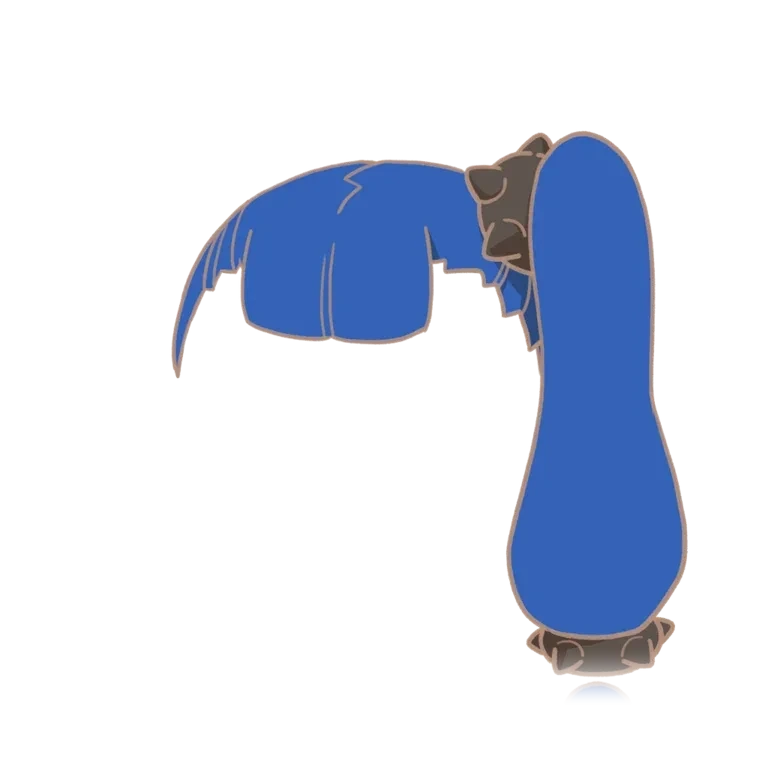
One Hair Slot can render on more than one Layer, such as under and in front of the face. Use a Slot Dependency when an Asset must match a pick from another Slot, such as hair art keyed to a Skin Trait.

03 / Rarity
Set the odds for each choice.
Give Traits a rarity tier, then override a Trait’s weight when it needs its own rate. Permuya uses the effective weights within each Slot to decide which Trait is picked.
A Slot is sampled once. Adding more Layers to that Slot does not count the Trait again.
Tier base weight → Trait override→ Slot odds
04 / Constraints
Say what can appear together.
Constraints can block combinations or change how often a Trait is picked. Each type handles a different relationship.
- Mutual Exclusion
At most one selected trait from this group can appear in a combination.
Explore Mutual Exclusion - Mutually Inclusive
This group is all-or-nothing: select every trait or select none.
Explore Mutually Inclusive - Group Exclusion
Limit how many traits from this group can appear together.
Explore Group Exclusion - Required Pair
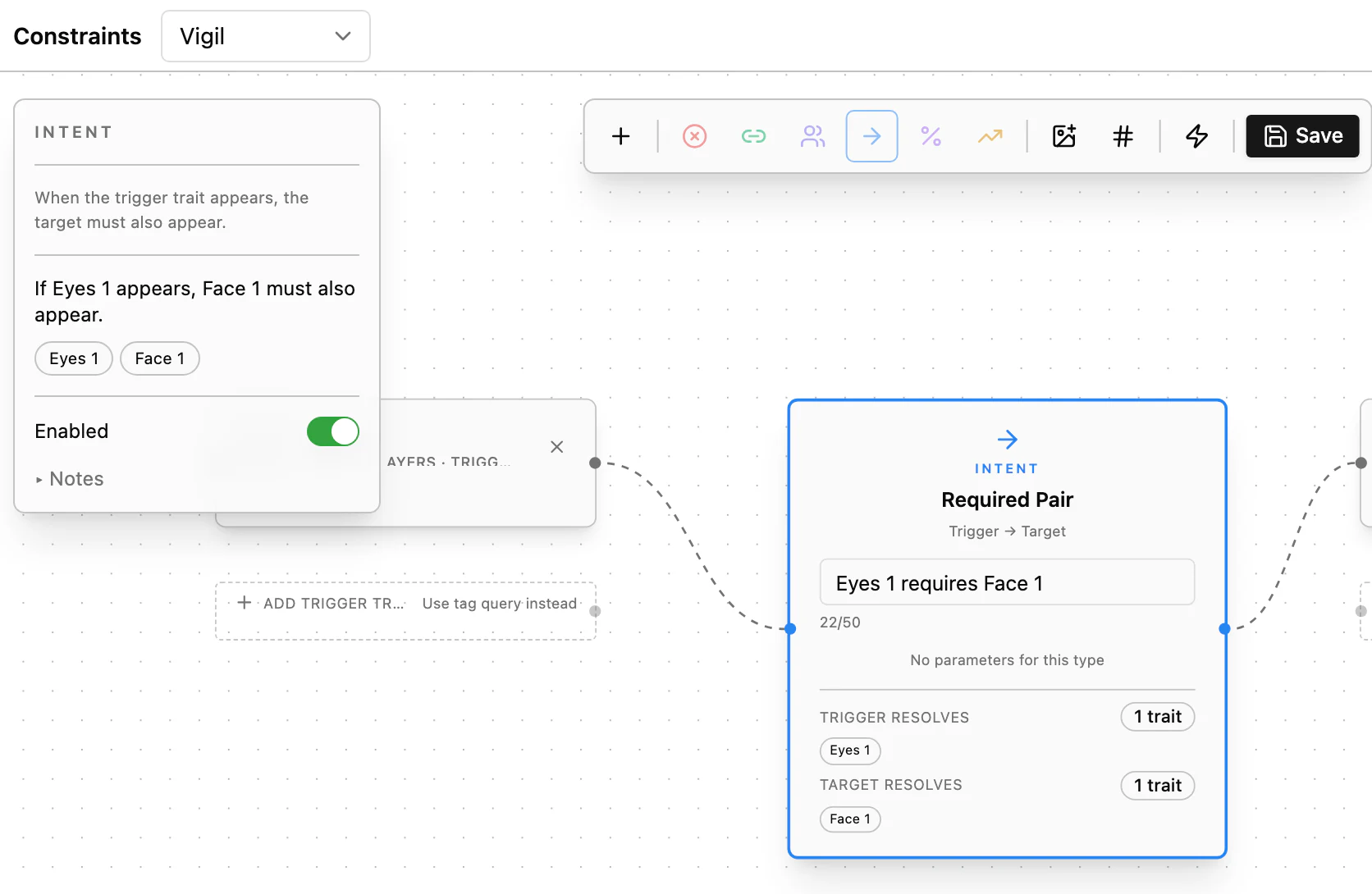
If any trigger trait is selected, at least one target trait must be selected.
Explore Required Pair - Conditional Probability
Picking a trigger trait changes the probability of a target group.
Explore Conditional Probability - Weight Adjustment
Multiply the selected traits’ weights by a chosen amount, without a trigger.
Explore Weight Adjustment
05 / Preview
Compose, check, and try a fresh draw.
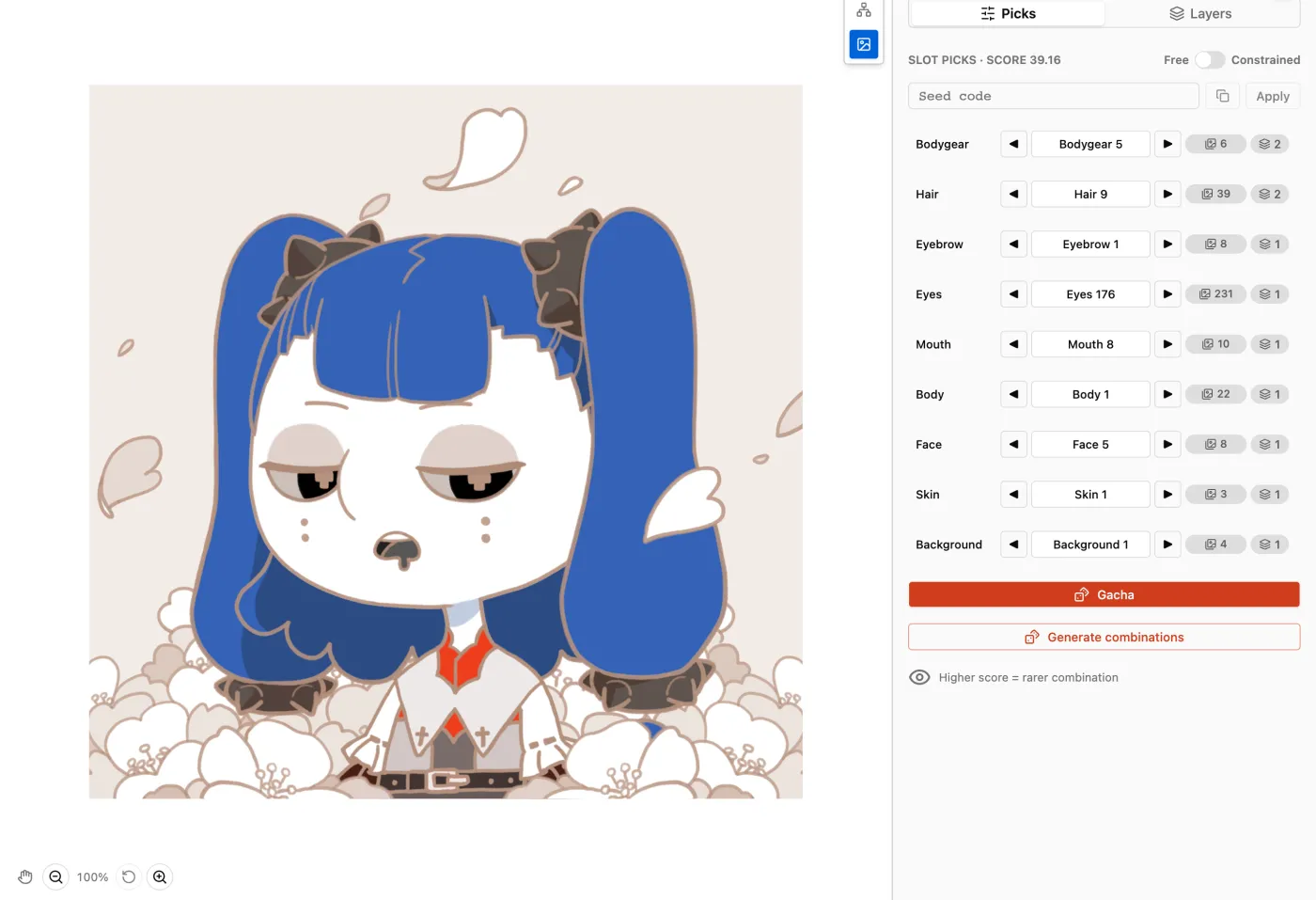
Compose puts a live canvas beside Slot Picks. Check five live variations, then use Gacha to draw one complete combination with rarity weights and Constraints applied.
Gacha gives you a new weighted sample each time. You can also choose Traits yourself on the Compose canvas.
06 / Generate
Choose a batch and start the render.
Select the Combinations to include. Their count sets the batch size. Permuya renders the batch in the cloud. You can close the tab while it runs.
A batch groups the Combinations you send for rendering.
07 / Export
Browse the finished images in Gallery.
Gallery shows successful renders. Download an image, add selected renders to a Collection, or download a batch ZIP with PNG images and a manifest.json.